

A robots.txt file is a small text file at the root of your website that tells crawlers which URLs they may or may not request. It manages crawling, not indexing or security, and that distinction trips up many site owners.
Get it right, and search engines spend their time on the pages that earn you revenue. Get it wrong, and one stray line can hide your entire site from Google. This guide covers the syntax, working examples, the mistakes we see most in audits, and how to handle the new generation of AI crawlers.
Book a 15-minute introductory call
How Does a Robots.txt File Work?
Before a well-behaved crawler fetches any page on your site, it requests yourdomain.com/robots.txt. It then reads the rules that match its name (its user-agent) and follows them for the rest of the visit. Google explains the exact parsing rules in How Google interprets the robots.txt specification.
Three things follow from this:
- Rules are read per crawler. You can give Googlebot one set of instructions and another bot a different set.
- No file means no restrictions. If the file returns a 404, crawlers assume everything is open.
- Each host needs its own file. blog.example.com and example.com are separate hosts, and each needs its own robots.txt.
Google caches your robots.txt, typically for up to 24 hours, so changes aren’t always instant.
What a Robots.txt File Can and Can’t Do
This is where most guides, including our earlier version of this one, blur the line.
| Robots.txt can | Robots.txt cannot |
|---|---|
| Stop compliant bots from crawling specific folders, files, or URL patterns | Guarantee a page stays out of search results |
| Reduce crawl waste on filters, internal search, and duplicate URLs | Protect private or sensitive data |
| Point crawlers to your XML sitemap | Force non-compliant or malicious bots to obey |
| Set different rules for different bots | Directly improve your rankings |
The indexing trap. If you block a URL in robots.txt but other sites link to it, Google can still index the bare URL without crawling it, so it appears with no description. To keep a page out of search results, use a noindex tag or X-Robots-Tag header, as described in Google’s guide to blocking search indexing with noindex. Leave the page crawlable so Google can see the instruction.
The security trap. Robots.txt is public. Anyone can read it, and listing /admin-backup/ there tells attackers exactly where to look. Protect sensitive areas with authentication, not robots.txt.
Robots.txt Syntax: Directives Explained
The file is built from simple groups of rules.
| Directive | Purpose | Example |
|---|---|---|
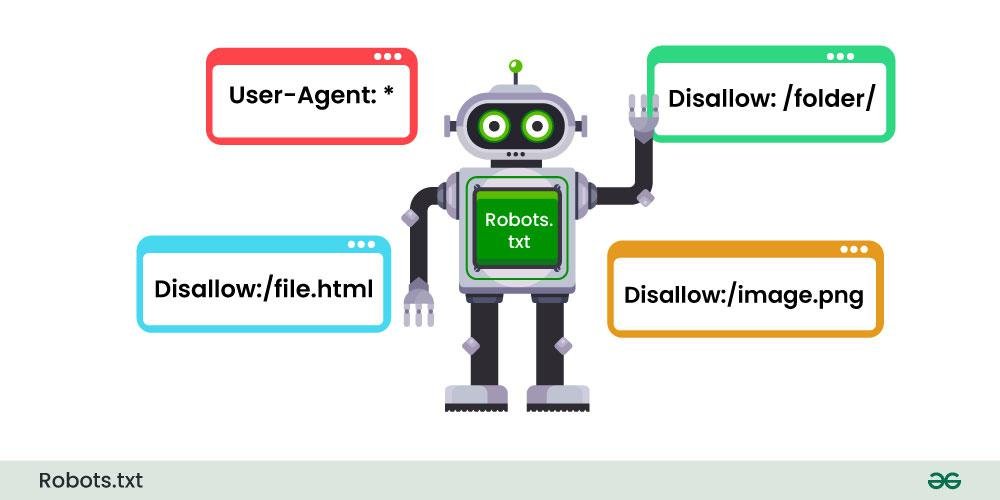
| User-agent | Names the crawler the rules apply to. * means all. | User-agent: Googlebot |
| Disallow | Blocks a path from being crawled | Disallow: /cart/ |
| Allow | Re-opens a path inside a blocked folder | Allow: /cart/help/ |
| Sitemap | Gives the full URL of your XML sitemap | Sitemap: https://example.com/sitemap.xml |
| * and $ | Wildcard and end-of-URL matching | Disallow: /*.pdf$ |
Rules to remember:
- Paths are case-sensitive: /Photos/ and /photos/ are different.
- The most specific matching rule wins, so an Allow can override a broader Disallow.
- The filename must be exactly robots.txt in lowercase, in the root directory, served as plain text over HTTP 200.
- Google ignores crawl-delay. Bing and some other crawlers honour it, but Googlebot adjusts its own crawl rate. Google also stopped supporting noindex inside robots.txt in 2019.
- Google processes only roughly the first 500 KiB of the file, so keep it lean.
Book a 15-minute introductory call
Robots.txt Examples You Can Adapt

- Allow everything and declare your sitemap (the safe default)
User-agent: *
Disallow:
Sitemap: https://www.example.com/sitemap.xml
- A typical WordPress site
User-agent: *
Disallow: /wp-admin/
Allow: /wp-admin/admin-ajax.php
Disallow: /?s=
Disallow: /search/
Sitemap: https://www.example.com/sitemap_index.xml
Don’t block /wp-content/ or /wp-includes/ wholesale. Google needs your CSS and JavaScript to render pages properly.
- An e-commerce store trimming crawl waste
User-agent: *
Disallow: /cart/
Disallow: /checkout/
Disallow: /my-account/
Disallow: /*?sort=
Disallow: /*?filter=
Sitemap: https://www.example.com/sitemap.xml
Check which parameter URLs are truly low-value before blocking them. Some filtered pages are legitimate landing pages.
- Blocking the whole site (staging only)
User-agent: *
Disallow: /
This is for staging and development environments only. Pushing it to a live site is one of the most expensive mistakes in SEO (more on this below).
How to Create and Upload a Robots.txt File
- Audit first. List the sections that waste crawl budget or shouldn’t be crawled: internal search results, cart and checkout, login areas, and parameter-heavy duplicates.
- Write the file in any plain-text editor. Use UTF-8 encoding and avoid word processors.
- Name it robots.txt in lowercase.
- Upload it to the root so it loads at https://yourdomain.com/robots.txt.
- Add your sitemap line with the absolute URL.
- Test it (see the testing section below) before and after going live.
CMS shortcut: WordPress SEO plugins (Yoast, Rank Math, AIOSEO) and platforms like Shopify and Wix provide a robots.txt editor or generate one automatically. Review what they produce rather than trusting the defaults blindly.
Robots.txt in the Age of AI Crawlers
In 2026, robots.txt isn’t just about Google. A growing set of crawlers collect content to train AI models or to power AI search answers, and robots.txt is the main lever site owners have.
Commonly referenced user-agents include:
- Google-Extended: a control token for whether Google may use your content for Gemini model training and grounding. It does not affect Google Search ranking or inclusion.
- GPTBot (OpenAI), ClaudeBot (Anthropic), PerplexityBot, and CCBot (Common Crawl).
Example:
User-agent: GPTBot
Disallow: /
User-agent: Google-Extended
Disallow: /
The strategic trade-off: blocking AI crawlers may limit how your content is used for training, but it can also reduce your chances of being cited in AI-generated answers. Decide by business goal. A publisher protecting proprietary research may block. A service business that wants visibility in AI answers may choose to stay open.
Important: blocking Googlebot itself will remove your pages from Google Search results. Google AI Overviews draw on the same indexed content as Search, and as of our last check, the Google-Extended token doesn’t control inclusion in Search features such as AI Overviews. Confirm against Google’s current documentation, as this area evolves quickly.
Book a 15-minute introductory call
7 Common Robots.txt Mistakes (and Fixes)
- Leaving Disallow: / live after a site launch. Add “check robots.txt” to your go-live checklist.
- Using robots.txt to hide pages from search. Use noindex instead.
- Blocking CSS, JavaScript, or image folders. This stops Google rendering pages correctly.
- Listing sensitive directories. The file is public; use authentication.
- Typos and case errors. Disalow or /Blog/ vs /blog/ silently fails.
- Using a relative sitemap URL. Always use the full https:// address.
- Never reviewing the file after site changes. A new product directory that falls under an old Disallow rule won’t get crawled.
How to Test and Monitor Your Robots.txt File
- Google Search Console → Settings → robots.txt report. It shows the versions Google has fetched and flags errors and warnings. This replaced the older standalone tester.
- URL Inspection tool. Shows whether a specific URL is blocked by robots.txt.
- Pages report (Indexing). Look for “Blocked by robots.txt” and “Indexed, though blocked by robots.txt.”
- Crawl tools. Screaming Frog or Sitebulb can simulate how rules affect your URLs at scale.
- Server log analysis. Confirms what bots actually request versus what you intended.
Quarterly check: open yourdomain.com/robots.txt after every redesign, migration, or CMS update.
Robots.txt vs. Noindex vs. Password Protection
| Goal | Right tool |
|---|---|
| Save crawl resources on low-value URLs | robots.txt Disallow |
| Keep a page out of search results | noindex meta tag or X-Robots-Tag (page must be crawlable) |
| Protect private or sensitive content | Password/authentication or server-level access rules |
| Consolidate duplicate pages | Canonical tags or 301 redirects |
Conclusion: Key Takeaways
- Robots.txt controls crawling, not indexing or security.
- Keep the file small, accurate, and placed at your domain root, with your sitemap declared.
- Don’t rely on crawl-delay or noindex in robots.txt for Google.
- Make a deliberate decision about AI crawlers instead of leaving it to defaults.
- Review the file after every major site change, because one line can cost you months of traffic.
FAQs
What is a robots.txt file used for?
It tells search engine and other web crawlers which parts of your site they may crawl. Site owners use it to reduce crawl waste on low-value pages and to point crawlers to their sitemap.
Where is the robots.txt file located?
In the root directory of your domain, for example https://www.example.com/robots.txt. A file placed in a subfolder is not recognised.
Does robots.txt stop a page from appearing in Google?
Not reliably. A blocked URL can still be indexed if other pages link to it. Use a noindex tag on a crawlable page instead.
Is robots.txt required for SEO?
No. A site without one is crawled freely. But a well-configured file helps manage crawl efficiency, especially on large or dynamic sites.
Does robots.txt affect rankings?
Not directly. It influences which pages get crawled, so a wrong rule can stop important pages from being discovered and ranked.
Does Google support crawl-delay in robots.txt?
No. Google ignores the directive. Some other search engines honour it, and Google lets you manage crawl rate through its own systems.
How do I check if my site has a robots.txt file?
Type your domain followed by /robots.txt into a browser. Then use the robots.txt report in Google Search Console to check for errors.
Can I block AI bots like GPTBot or ClaudeBot with robots.txt?
Yes, by adding a User-agent group for each bot with Disallow: /. Compliance is voluntary, and blocking may also reduce your visibility in AI-generated answers.
Is robots.txt secure?
No. It’s publicly readable and not a security measure. Use authentication for anything private.
How often should I update my robots.txt file?
Review it after site redesigns, migrations, new sections, or plugin changes, and at least quarterly.