
Images are usually the heaviest files on a web page. They’re also the easiest to get wrong. A single uncompressed 4 MB photo can slow a page enough to cost you visitors, and a missing alt attribute means search engines and screen readers get nothing from it.
The good news is that image SEO is mostly a repeatable routine: pick the right format, shrink the file, describe it properly, and load it intelligently. This guide covers that routine step by step, with real examples and code you can hand to your developer.
Book a 15-minute introductory call
Why Image SEO Matters
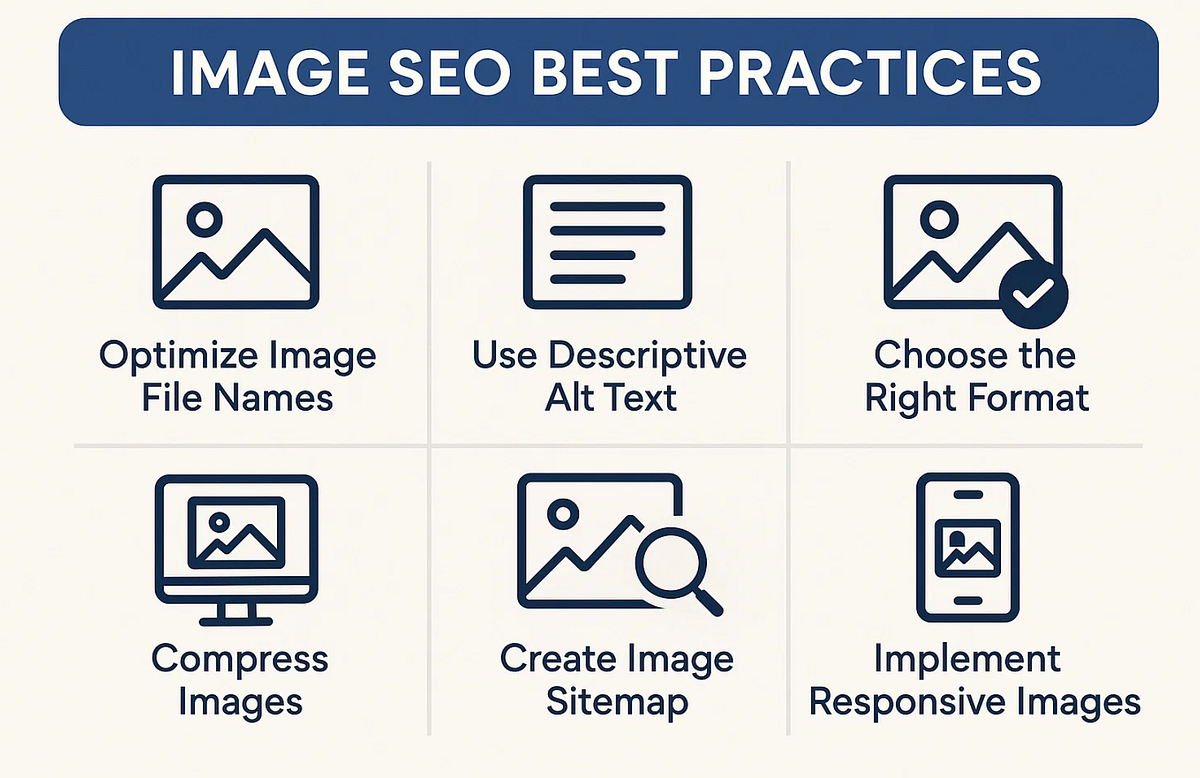
Images affect search performance in three ways.
Speed and Core Web Vitals. Google uses page experience signals, including Core Web Vitals, as part of its ranking systems. On many pages the Largest Contentful Paint (LCP) element is an image, so a heavy hero photo directly affects your LCP score. Google’s guidance is that a good LCP is 2.5 seconds or less. See web.dev’s guide to optimising LCP.
Image search traffic. Google Images is a search channel of its own. Google explains how it finds and understands images in its image SEO best practices.
Accessibility and trust. Alt text lets people using screen readers understand your content. The W3C Web Accessibility Initiative’s alt text tutorial is the standard reference. Accessible pages tend to be clearer for everyone, which supports the experience signals Google looks for.
Step 1: Choose the Right Image Format
The format you pick is the biggest single lever on file size.
| Format | Best for | Notes |
|---|---|---|
| JPEG | Photos where you need maximum compatibility | Small files, no transparency |
| PNG | Screenshots and graphics needing transparency | Larger than modern formats for photos |
| WebP | Most photos and graphics | Typically smaller than JPEG and PNG at similar quality, widely supported (WebP on Wikipedia) |
| AVIF | Photos where you want the smallest files | Strong compression, broad but not universal support (AVIF on Wikipedia) |
| SVG | Logos, icons, simple illustrations | Scales without losing quality, tiny files |
A practical approach: serve AVIF or WebP with a JPEG fallback using the <picture> element, so older browsers still work:
html
<picture>
<source srcset=“kitchen-renovation.avif” type=“image/avif”>
<source srcset=“kitchen-renovation.webp” type=“image/webp”>
<img src=“kitchen-renovation.jpg” alt=“Finished kitchen renovation with white cabinets and timber benchtop” width=“1200” height=“800”>
</picture>
For a deeper explanation, see web.dev’s guide to choosing the right image format.
Book a 15-minute introductory call
Step 2: Resize First, Then Compress
Many sites upload a 5000-pixel-wide photo and let the browser shrink it. The visitor still downloads every pixel.
- Resize to the largest size the image is actually shown at. If your content column is 800px wide, a 1600px image (for high-density screens) is plenty.
- Compress using a tool such as Squoosh, TinyPNG, ShortPixel, or ImageOptim.
- Check by eye. Pick the lowest quality setting where you can’t see a difference.
Rough guide (not a rule): aim for under about 100 KB for standard in-content images and under about 200 KB for a hero image. The right number depends on the image, so test with PageSpeed Insights.
Step 3: Write File Names That Describe the Image
Search engines read file names as a hint about the image’s subject. Compare:
- ❌ IMG_4593.jpg
- ✅ melbourne-office-seo-team-meeting.jpg
Use lowercase, separate words with hyphens, and keep it short and honest. Describe what is in the image, not a list of keywords.
Step 4: Write Alt Text That Helps People First
Alt text describes an image for anyone who can’t see it, and gives search engines context. Google recommends concise, descriptive alt text that fits the page topic, and warns against stuffing it with keywords (Google’s image best practices).
Examples:
| Quality | Alt text |
|---|---|
| Poor (missing) | alt=”” on an informative image |
| Poor (stuffed) | alt=”SEO agency Sydney best SEO services cheap SEO company” |
| Good | alt=”Marketing team reviewing a website traffic report on a laptop” |
Quick rules:
- Describe what matters in the image, in one short sentence.
- Don’t start with “image of” or “picture of”.
- Use a keyword only if it genuinely describes the image.
- For purely decorative images, use an empty alt=”” so screen readers skip them.
- For charts, state the key takeaway.
Book a 15-minute introductory call
Step 5: Add Captions Where They Earn Their Place
Readers scan captions before body text, and Google uses text near an image to understand it. Add a caption when it adds context, such as what a chart shows, where a photo was taken, or what to notice. Keep it to one clear sentence, and skip captions on purely decorative images.
Step 6: Make Images Responsive
A phone doesn’t need the same file as a 27-inch monitor. Use srcset and sizes so the browser downloads the right version:
html
<img
src=“team-800.jpg”
srcset=“team-480.jpg 480w, team-800.jpg 800w, team-1200.jpg 1200w”
sizes=“(max-width: 600px) 100vw, 800px”
alt=“DigiTotal team planning a content strategy”
width=“800” height=“533”>
Most modern WordPress themes generate multiple sizes automatically, but always check the output on a real phone.
Step 7: Set Width and Height to Prevent Layout Shift
If the browser doesn’t know an image’s dimensions, the page jumps as it loads. That hurts Cumulative Layout Shift (CLS), another Core Web Vital. Always include width and height attributes (or CSS aspect-ratio) on every image.
Step 8: Lazy-Load the Right Images
Lazy loading delays off-screen images until the visitor scrolls near them. Add loading=”lazy” to images below the fold. See web.dev’s guide to browser-level lazy loading.
One mistake to avoid: don’t lazy-load your hero or other above-the-fold image. It is usually your LCP element, and delaying it makes your page feel slower. For that image, do the opposite:
html
<img src=“hero.webp” alt=“…” width=“1200” height=“600” fetchpriority=“high”>
Step 9: Help Google Discover Your Images
- Use real <img> tags. Google can have trouble finding images that exist only as CSS backgrounds.
- Add an image sitemap or include images in your existing sitemap. Useful if images load via JavaScript. See Google’s image sitemap documentation. Note that Google now only needs the image location tag, so you can skip the older optional tags.
- Place images near relevant text on a page that is itself high quality, since Google ranks images partly based on the page they sit on.
- Don’t block image folders in robots.txt.
Step 10: Use Metadata and Structured Data Sensibly
Image metadata for licensing. If you sell or license photos, embed IPTC metadata so Google can show a “Licensable” badge. See Google’s image license metadata guide.
Structured data. Add Product, Article, or Recipe markup on the matching page types and include the image property. Use schema that reflects what’s actually on the page.
A note on WordPress “title” fields: the image title and description fields are mostly for your own media library organisation. Don’t expect them to move rankings. Alt text, file names, captions, and surrounding content matter more.
Book a 15-minute introductory call
Step 11: Optimise Images for Social Sharing
When someone shares your page, an Open Graph image controls the preview. Add og:image (around 1200 × 630 pixels is a common size) and Twitter/X card tags. You can test how Facebook reads your page with the Sharing Debugger and read Meta’s Open Graph documentation.
Step 12: Measure and Audit
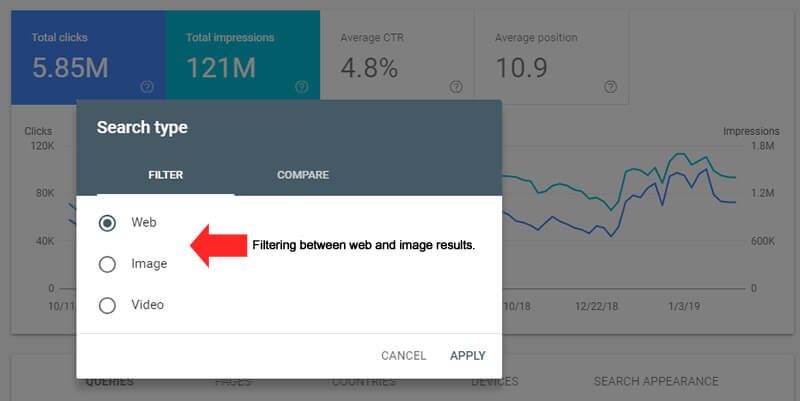
- Google Search Console: check the Performance report, filter by Search type: Image, and see which images earn impressions and clicks.
- PageSpeed Insights: review the image-related recommendations and your LCP and CLS scores on real-user (field) data.
- Google Analytics: compare engagement on image-heavy pages before and after your changes.
Audit quarterly, and always after a redesign or big content upload.
Image SEO Mistakes We See Most Often
- Uploading camera-original files without resizing
- Lazy-loading the hero image
- Leaving alt text blank, or repeating the same keyword in every alt attribute
- Using images that contain important text (search engines and screen readers may miss it)
- Missing width and height attributes
- Using vague file names like banner1.png
- Relying on stock photos for pages where trust matters, like About and Service pages
How to Show Experience and Trust Through Your Images
Google’s quality guidance looks for experience, expertise, authoritativeness, and trust (E-E-A-T). Your images can support that:
- Use original photos and screenshots of your own work, team, and projects instead of generic stock.
- Show real data. Annotated screenshots of your own analytics (with client permission) demonstrate first-hand experience.
- Credit sources for any third-party images and respect licences.
- Keep an author box with real credentials, and cite authoritative sources like the ones linked in this guide.
- Add your real before/after results here: [insert a verified example, such as “After compressing images on [client type] we reduced average page weight from X to Y”].
Frequently Asked Questions
What is image optimisation in SEO?
It’s the practice of preparing images so they load fast, display correctly on all devices, and are clearly described with file names, alt text, and context. This helps both user experience and search visibility.
What is the best image format for SEO?
WebP is a strong default for most photos and graphics, and AVIF can compress further where supported. Use SVG for logos and icons, and keep JPEG or PNG as fallbacks. The “best” format is the one that gives the smallest file at acceptable quality and works for your audience’s browsers.
How big should website images be?
There’s no fixed limit, but as a rough guide, keep standard images under about 100 KB and hero images under about 200 KB. More important is that the dimensions match how large the image is displayed.
Does alt text help SEO?
Yes. Google uses alt text to understand image content, and it’s essential for accessibility. Write it for people first and avoid keyword stuffing.
Should I lazy-load all my images?
No. Lazy-load images below the fold, but load your hero or other above-the-fold image immediately, because delaying it can hurt your Largest Contentful Paint.
Do image file names matter for SEO?
They’re a minor but useful signal. Descriptive, hyphenated names like blue-ceramic-vase.jpg help search engines and keep your media library organised.
Do I need an image sitemap?
Not always. Google can usually find images in standard <img> tags. An image sitemap helps when images are loaded through JavaScript or are especially important to your business.
How can I find out if my images are slowing down my site?
Run your page through PageSpeed Insights and look at the LCP result and the image-related opportunities. Search Console’s Core Web Vitals report shows how real visitors experience your pages.
Can image optimisation improve rankings?
It can contribute. Faster pages and better image understanding support your overall SEO, but images work alongside strong content, not instead of it.
Conclusion: Key Takeaways
Image SEO comes down to two goals: make images light enough to load fast, and clear enough that people and search engines know what they show. Choose a modern format, resize and compress, name and describe each file honestly, make images responsive, and lazy-load only what’s below the fold. Then measure the results and keep auditing.
Not sure where your site stands? Book a free 15-minute introductory call with DigiTotal and we’ll point out the quickest image and speed wins.